TP-Link Deco flashing white light means that it is booting up / trying to connect. If the light remains flashing for long periods of time, there could be a problem with the firmware, or there may be an unstable internet connection, incomplete setup, or configuration error. Try checking the power source, restarting your modem and TP-Link Deco, checking any Ethernet connections, updating the firmware, or resetting the device.
The TP-Link Deco range of mesh devices ensures reliable WiFi coverage throughout your home; however, you may encounter issues with some of the light indicators. A TP-Link Deco flashing white light can be an indication of an issue with either connecting or the setup. It can also happen during boot-up, setup, and after a firmware upgrade. Although it is normal to have a flashing white light during boot-up, if it continues to flash, it can indicate that there is an issue with booting or connecting to a stable network. This article will explain the meaning behind the white light, common reasons for it happening, and simple steps to help fix the issue.
Why Is My TP-Link Deco Flashing White?
A Deco by TP-Link with a white blinking light could be booting up, setting up, or connecting to your network. This is common on supported models. However, if the Deco router flashing white light and isn’t booting up properly, there may be an issue.
The following situations are some examples of when this may occur.
- During startup: It is booting up and setting up for the first time
- During initial setup: The device is waiting to be configured using the Deco app.
- After restarting: It is restarting and setting up the network.
- After firmware updates: It is updating with new software and restarting.
- During connectivity problems: There is an issue connecting to the network.
Note: Depending on when the light begins blinking, you can narrow down what may be causing the issue.
What Does a Flashing White Light on TP-Link Deco Mean?
The meaning of the white light can vary depending on the exact model of Deco you have. In most models, a flashing/ blinking white light means the Deco is booting up. If the white light is steady, it means it is operating normally.
If the TP-Link Deco white light is blinking and doesn’t change after several minutes, please refer to the specific LED indication for information related to your model.
General overview:
Status | Meaning |
| Blinking White | Boot-up in progress |
| Steady White | Operating normally |
| Blinking Blue | Ready to be setup/configured |
| Steady Red | Networking/system issue |
| Blinking Red | Networking/system issue |
Key Point: Please always refer to the official documentation for your specific Deco model for accurate information.
Common Reasons Why TP-Link Deco Keeps Flashing White?
Several factors can cause your TP-Link Deco stuck on flashing white during initialization.
Possible causes of Deco not initializing
Power supply issue: Unstable connection to the Deco or a damaged cable.
Unstable internet connection: Unstable connection to the modem or Internet Service Provider (ISP). This can mean that Deco is unable to connect to the network correctly.
Incorrect setup: If Deco was not set up correctly or has been interrupted during set up, it may not complete initialisation.
Outdated firmware: Issues such as errors or unexpected behavior could occur due to outdated firmware.
System error: Cached settings or errors in the system may be causing issues.
Ethernet connection issues: Damaged or loose Ethernet connections between the modem and the main Deco may be causing communication issues.
Component failure: Due to internal component failure, this issue may occur.
How to Fix TP-Link Deco Flashing White Issue?
Here are some easy fixes to solve this Deco blinking white issue:
Reboot the device: Unplug the power for 30 seconds and plug it back in. Allow the Deco to reboot.
Check the Ethernet cable: Ensure that the cable is correctly connected between the Modem and the main Deco.
Re-setup: Open the Deco App and reconfigure the Deco as per the instructions.
Update the firmware: Within the Deco App, check for any firmware updates and install.
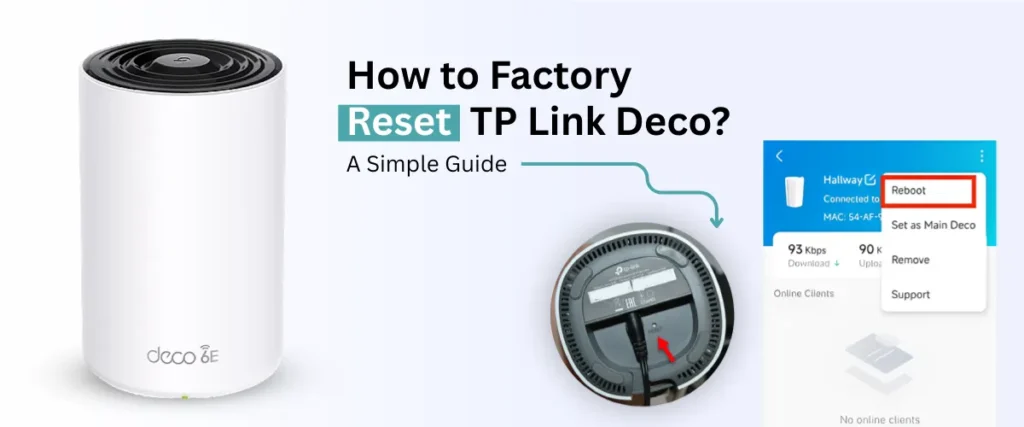
Factory reset
If issues persist, reset TP Link Deco and re-set up your network.
How to Prevent TP-Link Deco Flashing White Problems?
To help avoid repeated connection and startup issues related to TP-Link Deco blinking white,
you can:
- Ensure that the latest Deco firmware is installed.
- Use the correct power supply.
- Do not frequently unplug the Deco.
- Ensure cable connections to the Deco and Modem are secure.
- Ensure the Deco is in a well-ventilated place.
- Do not interrupt firmware upgrades.
- Install according to the recommendations.
- Occasionally restart your networking hardware.
Performing regular maintenance will help prevent many of the issues that can occur with mesh networks, keeping a consistent connection. If the problem is still not fixed, open tp link deco setup and recheck the connection to resolve the problem.
FAQs:
Why is my TP-Link Deco flashing white continuously?
This can occur during startup, reboot or connection. If the Deco light is still flashing after several minutes, check the power, network cable, firmware and setup.
How do I fix a TP-Link Deco flashing white light?
Check the power adaptor and network cables. Reboot your modem and Deco. Continue setup in the Deco App and install any firmware updates. If this fails to resolve the issue, you can reset the Deco.
Why is TP-Link Deco blinking white but not connecting?
This can occur due to incomplete setup, an unreliable internet connection, incorrect setup or a firmware issue. Check if your modem is correctly connected and if the main Deco unit has been set up correctly.
Why is TP-Link Deco flashing white but there is no internet?
The white flashing light does not mean that the Deco has internet. This can occur if your modem has lost a connection with the ISP, or the network cables between the modem and Deco are disconnected. Ensure that your modem has internet, and reconnect any disconnected cables.
Why is TP-Link Deco flashing white after restarting?
Once you’ve rebooted your Deco, it may be flashing white as it initializes. Try waiting several minutes. If it is still flashing, check the power and firmware.
Why is my TP-Link Deco flashing white after a firmware update?
It may be in the process of applying the firmware and rebooting. Do not turn the Deco off until the firmware update is complete. If it gets stuck, follow specific recovery instructions depending on your model, or contact TP-Link support.
Final thoughts
TP-Link Deco flashing white means it is in the process of starting up. If the light is constantly flashing, however, it could be due to an issue with configuration, power, firmware, or connection. In order to resolve this issue, first try simple fixes, including checking the power, rebooting your network, and checking network cables. If this does not work, try updating the firmware or resetting to factory settings by logging in to the TP Deco login. By doing so, the Deco should be restored and provide reliable wi-fi in your home.

About the Author
Alex morgan is an IT Support Specialist and Technical Content Author focused on TP-Link networking products, WiFi connectivity, Deco Mesh systems, and router troubleshooting. He creates easy-to-follow technical guides covering TP-Link Deco setup, network configuration, WiFi connectivity issues, troubleshooting, and device management.
His goal is to help readers understand networking technology through clear explanations, practical tips, and step-by-step support guides.