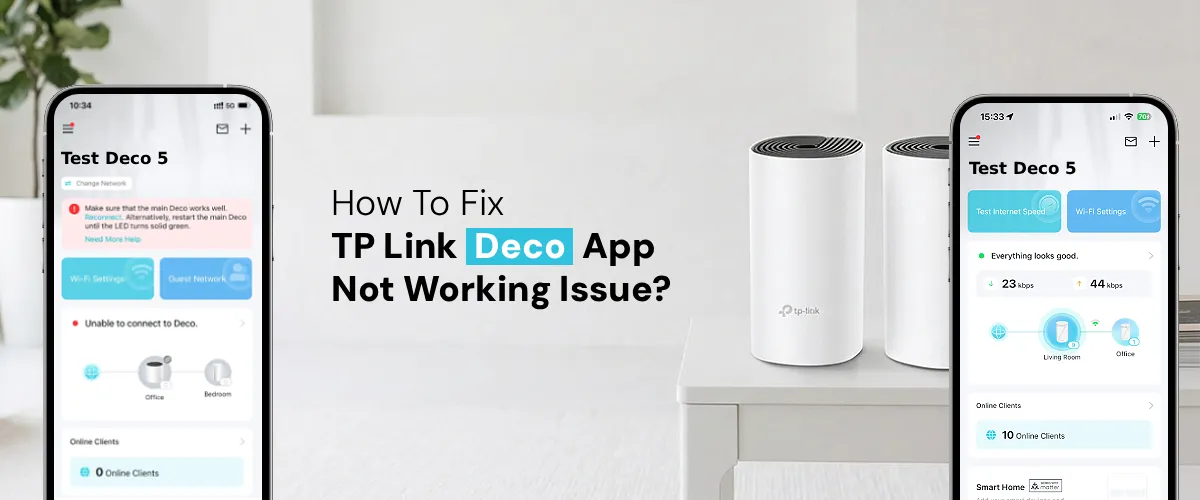
To fix TP Link Deco app not working, restart your phone and Deco device, check internet connection, update the app, enable Bluetooth and location, clear app cache, and ensure firmware is updated for proper syncing and smooth operation.
With thousands of users experiencing problems like the TP Link Deco app not working or the TP-Link Deco App keeps crashing, you are definitely not the only one having trouble with your TP-Link Deco App. Whatever the problem you may have, be it related to a first-time set-up or something that happened out of nowhere, like the Deco app not connecting to Deco devices, we can help you sort it all out.
The primary causes that TP-Link Deco app stops working include outdated software on the application, a faulty Wi-Fi connection between your mobile device and the Deco routers, an error in the app’s memory cache, and a bug in the firmware of the Deco hardware. All these causes are covered by the fixes outlined here.
Why is the TP Link Deco App Not Working?
Before we proceed with solving these problems, let us first look at some of the most probable reasons behind them. Deco, which is your main tool for controlling the mesh Wi-Fi network, may encounter some trouble due to any of the following problems:
Cause | Signs of the Issue | How easy is to Fix it? |
Outdated Deco app version | Crashes, missing features, UI errors | Easy |
Phone not on Deco Wi-Fi | Can’t detect or connect to Deco devices | Easy |
Corrupted app cache/data | App crashes, freezes, or won’t load | Easy |
ISP outage or modem issue | Deco network offline, no internet | Medium |
Outdated Deco firmware | Random disconnects, app communication errors | Medium |
TP-Link account/login issue | Remote access fails, app loops at login | Medium |
Corrupted Deco firmware/hardware fault | Device unresponsive, full reset needed | Hard |
How to Troubleshoot TP Link Deco App Not Working Issue?
There are multiple steps you can follow to resolve the TP Link Deco app not working issue. Here’s a look at some of them:
Restart & Update the Deco App
The simplest fixes resolve the majority of cases. Always start here before attempting anything more involved.
- On iPhone, swipe up from the bottom and swipe away the Deco card. On Android, tap the square/recent apps button and swipe the Deco app away. Then relaunch it.
- Open the App Store (iOS) or Google Play Store (Android), search for “TP-Link Deco”, and tap Update if available. TP-Link regularly pushes bug fix releases that resolve known app crashes.
- A full device restart clears temporary OS-level conflicts that can prevent the app from functioning correctly, especially after OS updates.
Deco App Not Connecting to Deco Devices
If your Deco app opens fine but shows “No Deco found” or refuses to detect your mesh units, the issue is almost always a network mismatch between your phone and the Deco hardware. Here’s how to systematically resolve the Deco app not connecting to Deco devices problem.
- Open your phone’s Wi-Fi settings. Make sure you’re connected to the SSID broadcast by your Deco system, not a neighbour’s network or your mobile data.
- Disable Wi-Fi on your phone, wait 10 seconds, then re-enable it and reconnect to your Deco Wi-Fi network.
- Unplug the primary Deco unit from power. Wait 30 seconds. Plug it back in and wait 2 minutes for it to fully boot before opening the app.
- During the initial Deco setup, the app uses Bluetooth to detect nearby units. Go to your phone’s Settings and select Privacy. From here, select Bluetooth and confirm that the Deco app has permission.
- Inside the Deco app (if you can reach the dashboard), go to More and select Firmware Update. Outdated firmware can cause the app to lose communication with your Deco nodes. If you’re managing your Deco network remotely (not on the same Wi-Fi), the app connects via your TP-Link cloud account. Remote management requires a stable internet connection on both ends and an active login session.
TP-Link Deco App Keeps Crashing
A TP-Link Deco app that keeps crashing is typically a software-side problem, either corrupted local app data or an OS incompatibility. Work through these steps in order.
- Go to Settings. Select Apps and then head to Deco and then Storage, and finally Clear Cache. This removes temporary files that may have become corrupted. If the crash persists, also tap Clear Data (note: this will sign you out of the app).
- On iPhone, go to Settings and then select General. From here, go to the iPhone Storage and select Deco and tap on Offload App. Then tap Reinstall App. This preserves your documents while replacing potentially broken app binaries.
- If your phone has less than 500 MB of free storage, apps are prone to crashes. Delete unused apps or media to free up space before reinstalling the Deco app.
- The TP-Link Deco app requires iOS 12 or later, or Android 5.0 or later. If your OS is below these thresholds, the app may be fundamentally unstable on your device.
Tip: After reinstalling, sign in to the app using your TP-Link account credentials. Your network settings are stored in the cloud, so your Deco configuration will be restored automatically.
Deco App Not Connecting to Internet
- In this scenario, the Deco app launches and detects your devices, but shows no internet connectivity, pointing to a problem between the Deco hardware and your ISP’s connection. The Deco app not connecting to the internet is different from the app failing to find devices.
- Unplug your modem/router from power. Wait 60 seconds. Power it back on. Then restart the primary Deco unit. Wait 3 minutes for everything to fully reconnect.
- Open the Deco app and tap on More and select Internet. Confirm the connection type (DHCP, PPPoE, or Static IP) matches your ISP’s requirements. An incorrect type will prevent internet access.
- Ensure the Ethernet cable connecting your ISP modem to the WAN port of the main Deco unit is firmly seated. Try a different cable or port if available.
- If the modem itself shows no internet (check its status LED), the issue is upstream with your internet service provider, not the Deco hardware or app.
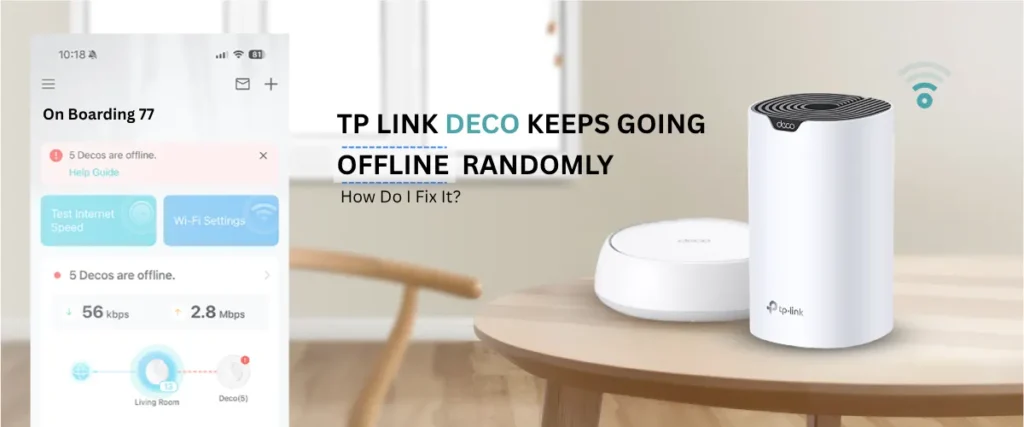
Solve Internet or Deco Network Offline Issue
- Check your modem and router power connection
- Restart Deco units and wait for sync
- Ensure internet cable is properly connected
- Update Deco firmware via app
- Verify ISP outage in your area
- Re-add Deco network in the app if needed
- Reset device as last option
Reset the Deco System (Last Option)
If all troubleshooting steps fail, perform a factory reset.
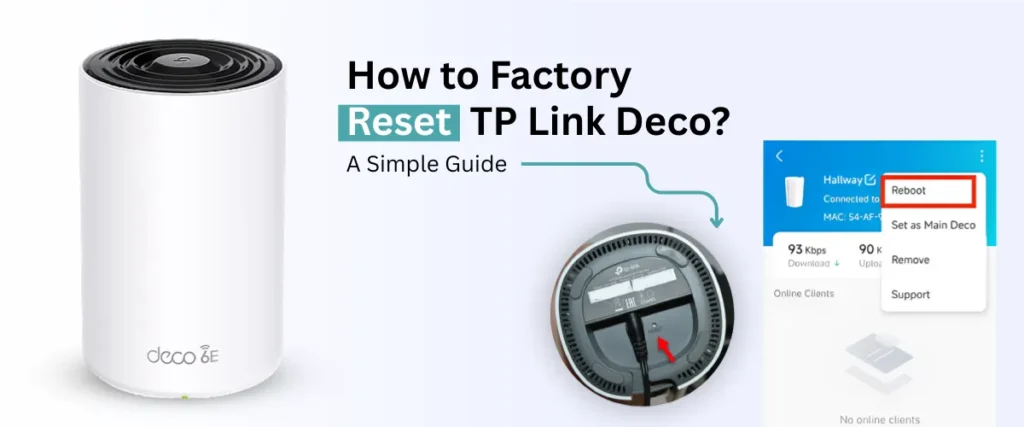
Use the Reset TP Link Deco option by pressing the reset button on the device for about 10 seconds until the LED blinks.
After reset:
- Set up your network again
- Reconnect using the Deco app
- Reconfigure your settings
This often resolves deep system errors causing app failures.
The Final Word
Whether you’re dealing with the TP Link Deco app not working, struggling with the Deco app not connecting to Deco devices, or battling a persistent Deco network issue, the fixes in this guide cover every verified cause and solution available.
The golden rule of troubleshooting is to start simple: restart the app, check your Wi-Fi, update the software. Most users resolve their issue before reaching the advanced steps. If you do need to go as far as a full reset of TP-Link Deco, remember to note down your Wi-Fi credentials and ISP connection details beforehand so the mesh setup is as painless as possible.
If issues persist after a factory reset, contact TP-Link Support directly. There may be a hardware defect covered under your warranty.
FAQs:-
Why is my TP-Link Deco app not opening?
The TP-Link Deco app can stop working for several reasons: an outdated app version, a poor or missing internet/Wi-Fi connection on your phone, a corrupted app cache, an expired TP-Link account session, or a firmware bug on your Deco hardware.
Why can’t I connect my Deco device to the app?
The problem might be the wrong WiFi signal, outdated apps, Bluetooth shut off, incorrect firmware, inability to pair or configure the device, or slow internet service causing the aforementioned issue.
Why does the TP-Link Deco app keep crashing?
Frequent crashes are most often caused by an outdated app version, insufficient device storage, or corrupted app cache data.
Why can’t I connect to my Deco network on the app?
The problem occurs because your phone needs to connect with the same Wi-Fi network that your router requires to be operational.
Does reinstalling the app delete my settings?
No, your Deco settings are saved in your TP-Link account.