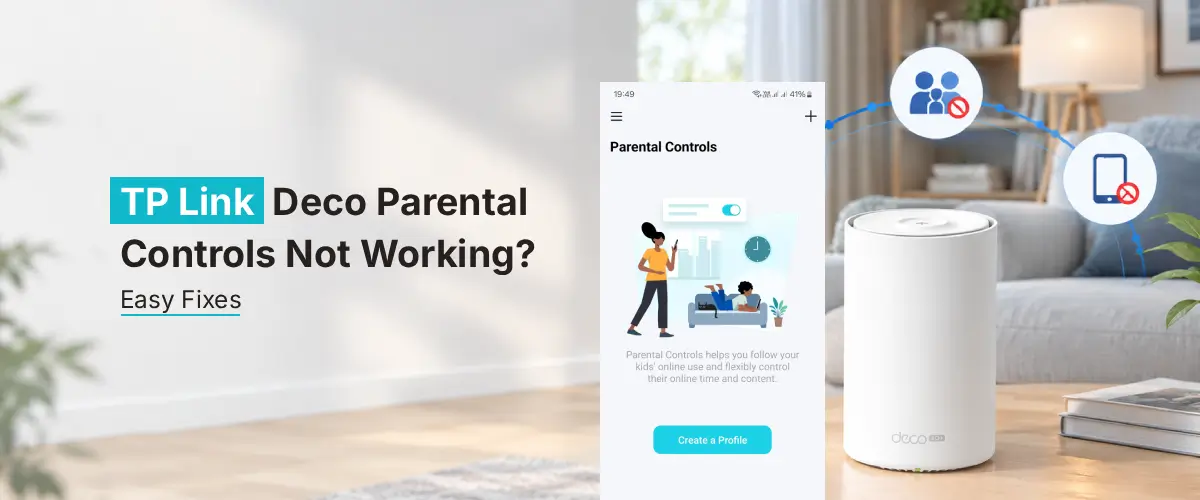
To fix TP Link Deco Parental Controls not working, first open the Deco app and update firmware on every unit. Then restart your mesh system fully. Rebind the affected device under Clients or Profiles since IP changes often break rules. Also disable VPN or DNS apps on that device. Finally, reboot the app itself.
TP-Link Deco parental controls allow you to monitor and manage internet traffic on all connected devices. Unfortunately, TP Deco parental controls may sometimes malfunction and cease parental control management, letting inappropriate sites go un-blocked and allowing internet use outside of established time limits. If you are facing Deco parental control not working issues and want to troubleshoot them effectively, it is vital to understand what may be causing the issues and how to resolve them. The following article provides you with important solutions that should help you get TP Deco parental control up and running smoothly and safely.
Why Are TP Link Deco Parental Controls Not Working?
Before you start troubleshooting, it is important to understand why your settings are not working as expected. The following are a few common reasons for this issue:
- Your child’s device is not set to the correct profile
- The Deco’s firmware is outdated
- You may have incorrect time or filtering schedules
- Parental control features may not be supported on your particular Deco model or subscription plan
- The child is using a VPN or cellular data instead of the home network
- There could also be an issue with syncing in the Deco app
Note: Troubleshooting this issue will help you pinpoint the exact reason why your parental controls are not working properly and ensure that any changes you make actually take effect.
How to Fix TP Link Deco Parental Controls Not Working Issue?
If your TP-Link Deco parental controls are not working, here are some solutions to try:
- Make sure that the devices you want to monitor are under the right profiles within the Deco App.
- Check the restrictions you have put on the devices. Make sure there are no website restrictions or screen time and bedtime limits.
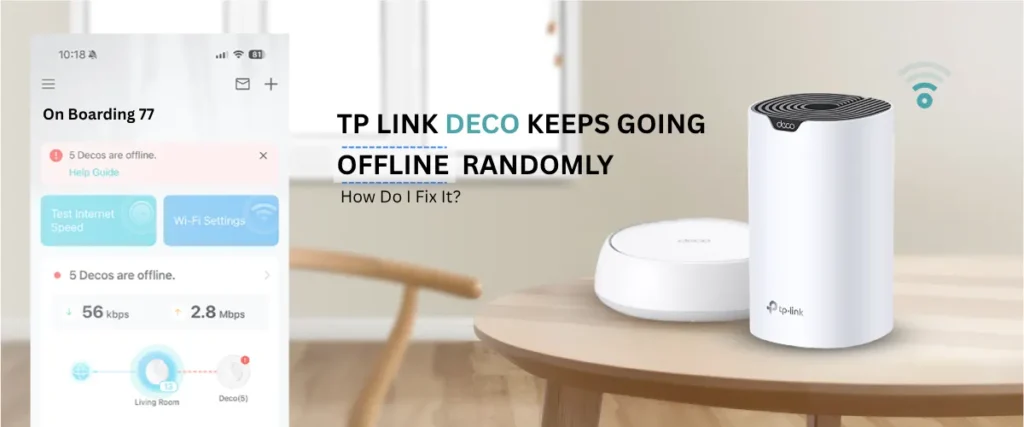
- Restart the Deco. Sometimes restarting the device can solve problems.
- Ensure that you have updated the Deco to the latest version. If there are updates, you should install them.
- Update the application to the latest version.
- Turn off any virtual private network or make sure that the Deco is connected to your Wi-Fi.
Check if your model is compatible, or contact TP-Link’s customer service for further assistance.
Troubleshooting Tips for Deco M5 Parental Controls Not Working:
Not all Deco models offer the same parental control features. Some models offer basic filtering and access controls, whereas more advanced scheduling, reporting, and security features are available to supported subscriptions.
Step-by-Step Fixes
- Check your Deco M5 profile: Open the Deco app and make sure your child’s phone, tablet, or computer is on the right parental control account
- Review your filtering settings: Ensure the sites and content you’ve blocked are correct and that your device is connecting to your Deco M5
- Try restarting your Deco M5: Unplug your primary Deco and wait 30 seconds before plugging it back in. Wait for your network to re-establish a stable connection and then try applying the restrictions again
- Review TP Link Deco Firmware Update: Check your Deco app or the TP-Link Deco M5 support page to see if there are any new firmware updates available for your location and hardware version. TP-Link has made several fixes to certain versions of the Deco M5 so check if there is an update available for your specific model.
- MAC address: Check if your device has a random MAC address. If you’re having trouble with the bedtime or time restrictions not working, you may need to check if your phone or computer is using a randomized MAC address for its Wi-Fi. TP-Link has noted that this can cause the device to not be properly identified by the parent’s Deco M5 profile.
- Check if your restrictions are being applied: Try blocking a certain site and then ensure it’s under the right profile
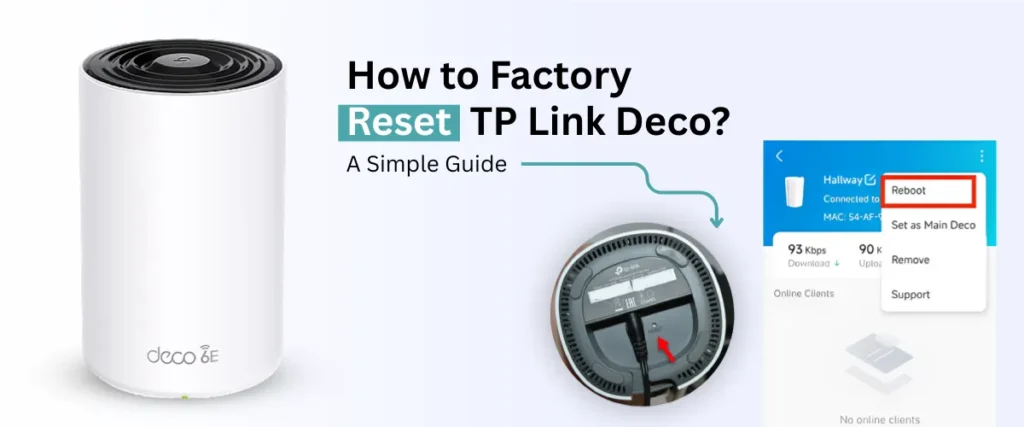
Important: Avoid a factory reset: Only do this if you’ve tried all the above steps and it’s still not working. A factory reset will undo all your settings and will need to be redone afterwards. As a last resort, you can look at the TP-Link parental controls troubleshooting guide.
Verification of Device Profiles and Restrictions Tips
If you are experiencing the Deco app not blocking websites issue, make sure that the device which you try to restrict has the right profile and network.
- Check if the website or category of sites you want to block is included in the rules and if your device is not using mobile data, guest network, other routers, or a virtual private network (VPN).
- Also, keep in mind that website filtering may not always work for encrypted links, different domain names, and applications.
- Make sure that a website you want to block is indeed available to the restricted device by testing it with another one.
Issues with Deco M5 Parental Controls and Their Solutions
- Websites are not blocked
Check the blocked list in the Deco app and make sure you enter the exact URL of the website. Clear browsing data in your browser cache.
- Bedtime schedule is not working
Make sure you set the right time and time zone in your Deco app settings.
- Your device is not recognized
Check if your device uses randomized MAC address and that it is assigned to the right profile.
- Time limits are not accurate
Make sure your daily limits are set and that background internet use also counts towards the time limits.
- Parental control stops working after update
Check if there are any available Deco firmware and app updates that are compatible with your Deco M5 model.
- Restrictions start working late
Restart your Deco and wait for it to sync the system time.
These solutions were suggested by TP-Link support team as an official parental control guide.
FAQs
How do I enable parental controls on TP-Link Deco?
You can open the Deco application, select parental controls or profile management, create a profile, add devices, and set filtering or screen time schedules. It depends on your model and plan; some features may be unavailable.
Can outdated firmware affect Deco parental controls?
It could be possible if the Deco app has bugs or incompatibility issues with an old version of the firmware. You can check for an update in your Deco application and try to resolve the issue.
Should I factory reset my Deco router?
It would be better to check other possible issues before doing a factory reset. You may lose all your data because of the factory reset if the problem is in your plan, profile, or Deco app.
Does TP-Link Deco support parental controls on every model?
It depends on your model, subscription plan, and firmware version; some Deco models do not provide all the filters and parental control functions. You should check which Deco model subscription plans you have and which features are available for your device.
Will restarting Deco delete my parental control settings?
The restart function usually does not delete any parental control settings. However, a factory reset can delete all your settings and data, so you should double-check your settings.
Final Thoughts
If your TP Link Deco parental controls not working, you should open your setup TP Link Deco M5 and check your profiles, filters, schedules, connections, and Deco app. You can update your Deco firmware and reset your Deco app or router. It would be helpful to check the list of functions provided for your Deco model before changing the settings. If you cannot solve the issue, you may contact customer service for the proper solution instead of doing a factory reset.