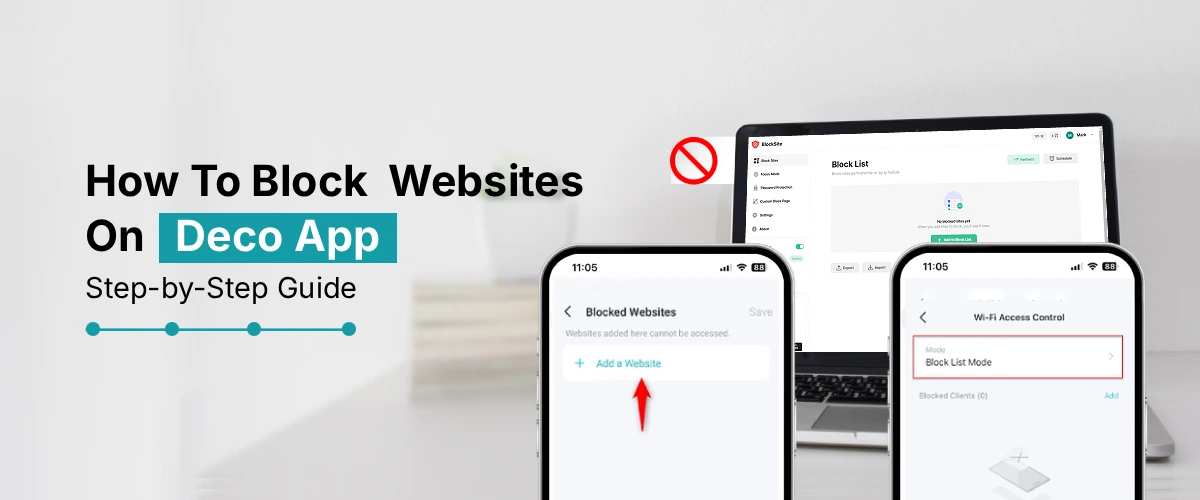
To block websites on Deco app, open the app, go to Parental Controls, create or pick a profile, add the devices you want to restrict and enter the website under Blocked Content before tapping Save. The rule then applies to every device in that profile across your whole Deco mesh. If a site still loads afterward, the usual culprits are a private Wi-Fi address, a VPN or outdated firmware. This guide walks you through setup, unblocking and troubleshooting.
If you want to keep your kids away from the wrong type of content, cut down on social media distractions or simply make your home network a bit safer, blocking websites can help. And the TP-Link Deco app makes it easy. The Parental Controls feature on the router lets you restrict individual websites without touching any advanced router settings. This blog will help you learn how to block websites on Deco app in a few minutes, how to undo a block and what to do when it doesn’t work as expected.
Why block websites on the Deco app?
Blocking websites on the Deco app can help you control internet access throughout your home network. Parents can stop websites that might have harmful content for kids. Blocking websites can also cut down on distractions when you are trying to study or work. It can stop people from going to websites and give you more control over the devices that are connected. The Deco app has easy to use network management tools that let you set limits based on what your family needs. You can use these tools to make browsing safer and keep control over how devices use the internet.
Before you start
A few quick checks will save you frustration later.
- First, open the app and sign in with your TP-Link ID, and make sure you’re managing the right network.
- Next, run a TP Link Deco Firmware Update from within the app. Some parental control features need current firmware, and a few advanced ones require a subscription to Advanced Parental Control.
- Finally, switch off the Private Wi-Fi Address or Random MAC setting on the device you want to control.
TP-Link notes that parental controls may not take effect while it’s enabled, and it’s one of the most common reasons blocks fail.
How to block websites on Deco app?
The Deco app allows you to manage connected devices and control internet access across your home network. If you want to prevent a device from visiting certain websites then you can use the parental control features available in the app. The exact options may vary depending on your Deco model and app version.
Steps to Block Websites
- Open the Deco App
Launch the Deco app on your smartphone. Login to TP Link Deco account if required. - Select Your Home Network
Choose your Deco network from the home screen. Make sure your phone is connected to the Deco WiFi network. - Open Parental Controls
Go to the Parental Controls section. Select an existing profile or create a new profile for the device that you want to manage. - Add the Device
Choose the phone, computer tablet or other device that should have restricted website access. Add it to the selected profile. - Create a Website Restriction
Look for options such as Blocked Content or Website Filters. Add the website domain that you want to restrict. Depending on your Deco model, you may also be able to select categories of websites. - Save the Settings
Save your changes and allow a few moments for the settings to apply. Test the blocked website from the selected device.
Important Tips
- Keep the Deco app updated.
- Check that the correct device is assigned to the profile.
- Review parental control settings regularly.
- Some Deco models may offer different website filtering options.
- Use the latest Deco firmware for improved compatibility.
Website blocking through the Deco app can help manage internet access for children and other users. If your app does not show website blocking options then check the features supported by your specific Deco model.
How to Unblock a Website on Deco App?
If a website is blocked on your TP-Link Deco network then you can remove it from the blocked list through the Deco app. Follow these steps:
- Open the Deco App
Launch the Deco App on your smartphone. Sign in with your TP-Link ID if required. - Select Your Network
- Choose your Deco network from the home screen to access network settings.
- Open Parental Controls
Tap Parental Controls and select the profile where the website is blocked. - Check Blocked Websites
Open the website restrictions or blocked content section. Look for the website you want to unblock. - Remove the Website
Delete the website from the blocked list. Save the changes if the app asks for confirmation. - Test the Website
Open a browser on the connected device. Visit the website again to check whether it is accessible.
If the website remains blocked then restart your Deco network and try again.
What if website blocking does not work?
Website blocking through the Deco app can help manage internet access for selected devices. However, some settings may not work correctly after configuration. If Deco app not blocking websites, follow these troubleshooting steps.
1. Check the Assigned Device
Open the Deco app and check whether the correct device is selected for website blocking. Make sure the device is connected to your Deco network. If the wrong device is selected, the restriction may not apply.
2. Review Parental Control Settings
Open the device profile and review the blocked websites or content filters. Confirm that the website address has been added correctly. Remove incorrect entries and add the website again.
3. Restart Your Deco System
Restart your Deco units and reconnect the affected device. A restart can refresh network settings and help apply recently changed restrictions.
4. Update the Deco App
An outdated app can cause configuration problems. Check for an available Deco app update and install the latest version. Also check whether your Deco system has a firmware update.
5. Check Private DNS or VPN
If Deco blocked websites not working after setup, you should check whether the affected device is using a VPN or private DNS service. These services can change how website requests are handled and may interfere with network based restrictions.
6. Test After Clearing Browser Data
If your Deco app is not blocking websites at all, clear the browser cache and cookies on the affected device. Then restart the browser and test the blocked website again.
FAQs:
How do I block websites on TP-Link Deco?
Can I block websites for a specific device?
Yes. Blocking works by profile, so create a profile that contains only that device. Every other device on your network stays unaffected.
Does website blocking work on mobile devices?
Yes, it works on phones and tablets connected to your Deco Wi-Fi, as long as their private Wi-Fi address feature is turned off. It won’t apply when the phone is using mobile data or another network.
Can I unblock a website later?
Absolutely. Go to Parental Controls, open the profile, tap Blocked Content, choose the three dots next to the site, tap Delete and then Save.
Why is a blocked website still accessible?
The most common causes are a device missing from the profile, a private Wi-Fi address, an active VPN or private DNS, unsaved changes or outdated firmware. The troubleshooting section above walks you through each fix.
The final word
Now you know how to block websites on Deco app, unblock them when needed and fix the most common problems. Set up a profile for each person, add the sites you want restricted and keep your firmware current. Your Deco network will then apply your rules reliably across every connected device.