
To fix TP-Link Deco slow speed issues, restart your Deco units and modem, update the firmware, place Deco nodes in open locations, reduce network congestion, and run a speed test. Also, check Ethernet cables and ensure your internet plan provides the expected speeds.
Are you frustrated by tp link deco slow speed? It isn’t only you! There is a growing number of people complaining about tp link deco mesh slow speed. Luckily, there are simple solutions for these issues that don’t require special knowledge. Read on to learn all steps needed to get fast Internet connection back.
Why is My TP-Link Deco Running Slow?
Before jumping into fixes for tp link mesh problems, it would be beneficial to know the reasons for the low-speed connection problem before addressing the solutions. The possible reasons could be:
- Improper installation of the Deco devices
- Old firmware version
- Congestion in the network because of an excess number of devices
- ISP throttling or downtime
- Misconfigured DNS or backhaul
- A hardware reset is required
Let us discuss the solutions to these issues step-by-step.
Troubleshooting TP Link Deco Slow Speed Issues
Step 1: Test Your Current Speed First
Do a speed test before making any changes. Connect one device directly to your modem using an Ethernet cable and then go to Speedtest.net. Take note of your results. Afterwards, connect using the Deco Wi-Fi and conduct another speed test.
If your wired speed is in line with the package that your internet service provider (ISP) has provided you, then the trouble lies in the configuration of your Deco system. However, if both wired and Wi-Fi speeds are poor, then there must be something wrong with your ISP.
Step 2: Restart Your TP-Link Deco System
It’s quite basic, yet effective. Restarting eliminates memory leaks, resets DHCP addresses, and fixes any temporary network congestion.
How to restart:
- Launch the Deco app on your mobile device.
- Select the menu button and navigate to More > Advanced > Reboot.
- Allow 2–3 minutes for all nodes to boot up again.
On the other hand, disconnect each Deco device from power supply for 30 seconds before plugging the main device in, then connect the satellites after that. Doing regular resets once a week will help you avoid future tp link deco speed slow issues.
Step 3: Optimise Your Deco WiFi Network
Improper placement is one of the reasons that are mostly ignored when facing tp link Deco mesh slow speed issues. Proper placement is needed by the Deco devices to ensure a good mesh backhaul connection.
Important tips for setting up Deco devices:
- Ensure that the primary Deco device is placed near the router/modem and preferably in the center of your house.
- Satellite Deco devices should not be too far from the primary device, not more than 30-40 feet apart.
- Units should not be placed near microwaves, baby monitors, cordless phones, and thick concrete walls because they all block the 2.4 and 5GHz frequencies.
- Raise your units above the ground, at shelf or table height.
- Do not put any Deco units inside a cabinet or behind a television set.
The poor Deco wifi setup is one of the reasons why people experience low speed on their devices. If the mesh network is properly placed, it will increase the wi-fi speed by two or three times.
Step 4: Check for Firmware Updates
The fact that your TP-Link router has an outdated firmware can easily lead to tp link router slow wifi speed problems.
How to Run Deco Firmware Update?
- Launch Deco app.
- Go to the Menu tab, select More and Updates.
- If there is an update, click on “Update all.”
- Let it finish completely and don’t disconnect any units during the whole process.
Set automatic updating in the application preferences to be sure you’re using the current firmware version. It has happened that one update could go unnoticed and result in continuous problems with the mesh network for weeks.
Step 5: Reduce Network Congestion
An overload in terms of the number of devices using up bandwidth is going to negatively impact network speeds. Open the Deco app to see the current status of the number of devices that are actively connected to your network from the Connected Devices section.
If you are experiencing 20+ devices simultaneously connected, then consider:
- Activating the QoS feature in the Deco application to give priority bandwidth access to devices such as laptops being used for work or gaming stations.
- Removing idle devices that take up bandwidth in the background.
- Establishing a Guest Network to separate the smart devices in the home.
Step 6: Change Your DNS Settings
However, the built-in DNS from your ISP may sometimes be slower or less reliable. By using a faster DNS, you can speed up browsing and streaming performance.
- To do this in the Deco app, navigate to More > Advanced > IPv4.
- Modify your DNS server settings to 8.8.8.8 (Google) or 1.1.1.1 (Cloudflare).
- Save the changes and reboot your network.
The above-mentioned solution will definitely help you in solving tp link deco slow internet speed on certain devices when everything else works just fine.
Step 7: Reset Your Deco to Factory Settings (Last Resort)
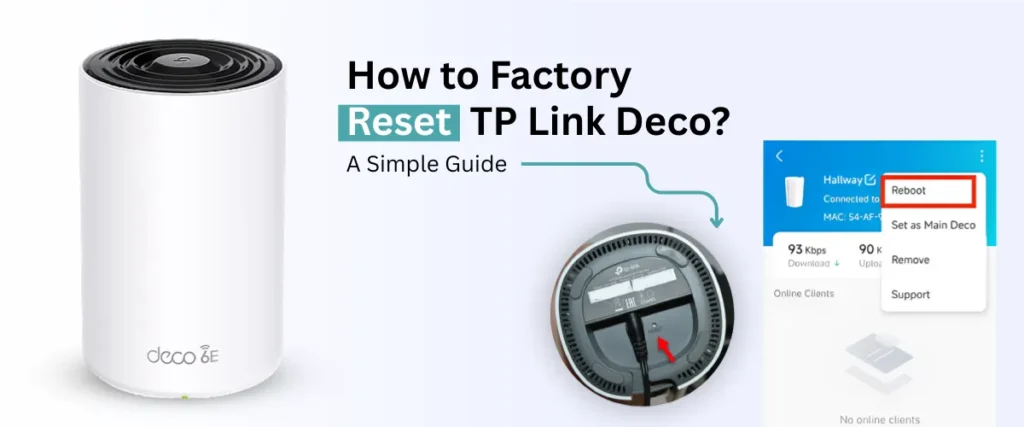
In case nothing above helps, it might be necessary to reset Deco to factory settings and begin from scratch. This procedure will erase all your settings, and Deco will be set up again.
Resetting Deco involves:
- Finding the reset button at the back or bottom of the device.
- Pressing and holding the button for 5 seconds.
- Redesign your network setup using the Deco application from scratch.
This process addresses any deep-level configuration issues, corrupt settings, or other software glitches that might develop over time. Once your Deco is reset, follow the best practices explained below to set up your network.