Why Is My TP Link Deco Flashing Red?: Causes and Fixes
To fix TP Link Deco flashing red light, check your internet connection, restart the modem and Deco device, and ensure cables are properly connected. When the blinking continues, reset the Deco unit using the reset button and reconfigure it through the Deco app for stable WiFi.
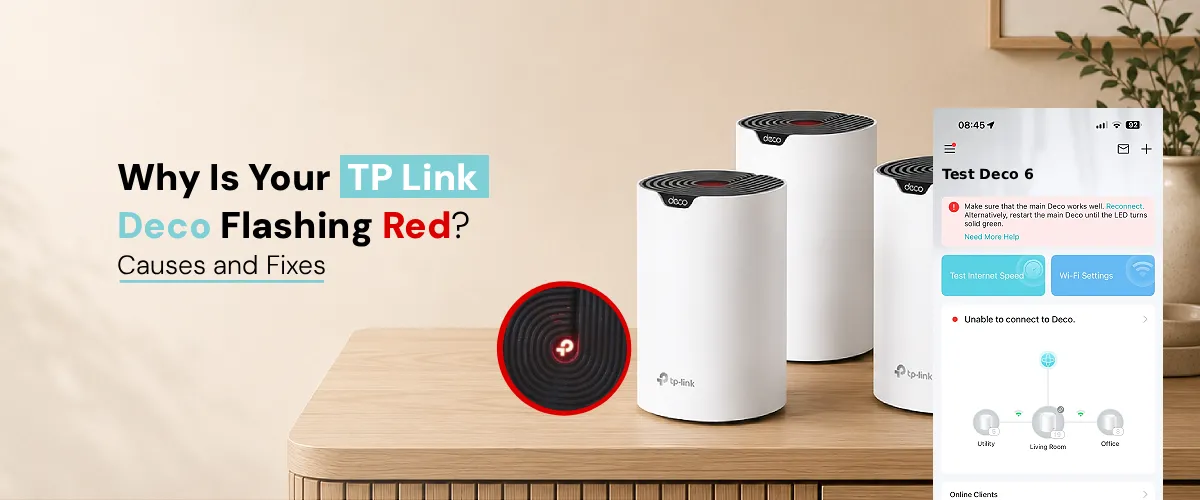
If you’ve walked past your mesh router and noticed your TP Link Deco flashing red, you’re not alone. This is one of the most commonly reported issues among Deco users, and while the blinking light can feel alarming, it almost always points to a fixable problem. In this guide, we’ll break down exactly what causes the red light, how to interpret it, and the most effective ways to get your network back up and running.
What Does the Red Light on TP Link Deco Mean?
The LED light on your Deco unit is its primary way of communicating its status. Different colors and patterns indicate different states, and red is the system’s way of telling you something is wrong.
When you see your TP Link Deco blinking red, it generally means one of the following:
- The unit has lost its internet connection
- There’s a problem communicating with the main Deco node
- The device hasn’t been set up yet or has lost its configuration
- There’s a firmware or hardware-level issue
TP Link Deco flashing red isn’t always a sign of a serious problem, but it does require attention. The key is identifying which cause applies to your situation before jumping to solutions.
Common Causes of TP Link Deco Red Light Flashing
1. No Internet Connection from Your ISP
The most frequent reason for TP Link Deco red light flashing is a disrupted internet connection from your Internet Service Provider. If your ISP is experiencing an outage or has temporarily cut your connection due to billing or maintenance, your Deco has nothing to bridge, and the red light kicks in.
Before you start fiddling with hardware, check whether your ISP is down. You can do this by calling your provider or checking their outage map on a mobile data connection.
2. Loose or Faulty Cables
A surprisingly common culprit is something as simple as a loose cable. The WAN cable connecting your modem to the main Deco unit might have become partially unplugged, damaged, or worn out. If the physical connection between your modem and Deco is interrupted, the system will flag it immediately with a red light.
Check every cable in the chain, from the wall to the modem, and from the modem to your primary Deco node. Swap cables if you have spares to rule this out.
3. Satellite Deco Units Losing Connection to the Main Node
If you have a multi-unit mesh setup and only one TP Link Deco node is flashing red, it’s likely that satellite unit has lost communication with the main Deco. This can happen when:
- The satellite unit is placed too far from the main node
- There’s physical interference (thick walls, appliances, other electronics)
- The satellite was recently moved or repositioned
The main node connects directly to the internet, while satellite units rely on a stable wireless or wired backhaul to the main node. Any break in that backhaul will trigger a red flash on the affected satellite.
4. Outdated Firmware
Yes, outdated firmware can absolutely cause the TP Link Deco to flash a red error. When your Deco’s software is significantly behind, it can cause instability, failed connection attempts, and communication errors between nodes. A Deco firmware update is often an overlooked fix that resolves persistent red light issues without any hardware changes.
TP-Link regularly pushes updates to improve stability and patch bugs. If auto-update is disabled or a previous update failed mid-installation, your unit could be stuck in an error state.
5. IP Address Conflict or DHCP Issues
Sometimes your router or modem assigns conflicting IP addresses, which disrupts the Deco’s ability to establish a proper connection. This is more common when you have multiple networking devices on the same line or when you’ve recently changed your modem.
6. Overheating
Deco units are designed for continuous use but need adequate ventilation. If a unit is placed inside a cabinet, near a heat source, or in a poorly ventilated spot, it can overheat. Thermal throttling and hardware protection modes can trigger abnormal LED behavior, including red flashing.
Common TP Link Deco Flashing Red Light Fixes
Fix 1: Restart Everything in the Right Order
Power cycling is the first and most effective step. Here’s the correct sequence:
- Unplug your modem and all Deco units from power
- Wait 30 seconds
- Power on your modem first and wait until it’s fully connected (usually 60–90 seconds)
- Power on your main Deco node
- Once the main node shows a steady light, power on any satellite units
This sequence ensures each device comes online in the proper order and avoids the cascading connection failures that cause the red light.
Fix 2: Check and Replace Physical Cables
Inspect the Ethernet cable running from your modem to the main Deco node. Try a different cable if possible. Even if the cable looks fine, internal wire damage can disrupt the connection without any visible signs.
Fix 3: Log In to the Deco App and Run Diagnostics
Open the TP-Link Deco app on your smartphone and perform a TP Link Deco login to access your network dashboard. Once inside, you’ll be able to see which units are reporting errors, check signal strength between nodes, and run built-in diagnostics that can pinpoint the issue automatically.
The app will often tell you directly whether the problem is an internet outage, a disconnected satellite, or a configuration issue, saving you from guessing.
Fix 4: Update the Firmware
Inside the Deco app, navigate to More > Update. If a firmware update is available, install it immediately. Make sure your Deco stays powered during the update and avoid interrupting the process. A successful firmware update has resolved TP Link Deco blinking red light issues for a large number of users, particularly those running older Deco models or units that haven’t been updated in several months.
Fix 5: Reposition Satellite Units
If a satellite node is the one flashing red, try moving it closer to the main Deco unit, even temporarily, to see if it re-establishes the connection. If the light turns solid after moving it, the placement was the issue. You’ll need to find a position that’s closer to the main node while still providing coverage to your desired area.
A good rule of thumb: no satellite unit should be more than two rooms or one floor away from the nearest node.
Fix 6: Reset the Affected Unit
If none of the above has worked, a factory reset might be necessary. Use a pin to press and hold the reset button on the back of the unit for about 5 seconds until the LED changes. After the reset Deco, you’ll need to set the unit back up through the app from scratch.
Note: Resetting only the satellite unit won’t affect the rest of your network configuration. Resetting the main node, however, will require you to reconfigure your entire Deco network.
Fix 7: Contact TP-Link Support
If you’ve tried everything and the TP Link Deco flashing red light issue persists, there may be a deeper hardware fault. Contact TP-Link support with your device model number and a description of the troubleshooting steps you’ve already taken. Units still under warranty may be eligible for a replacement.
Is Your Deco Showing Offline?
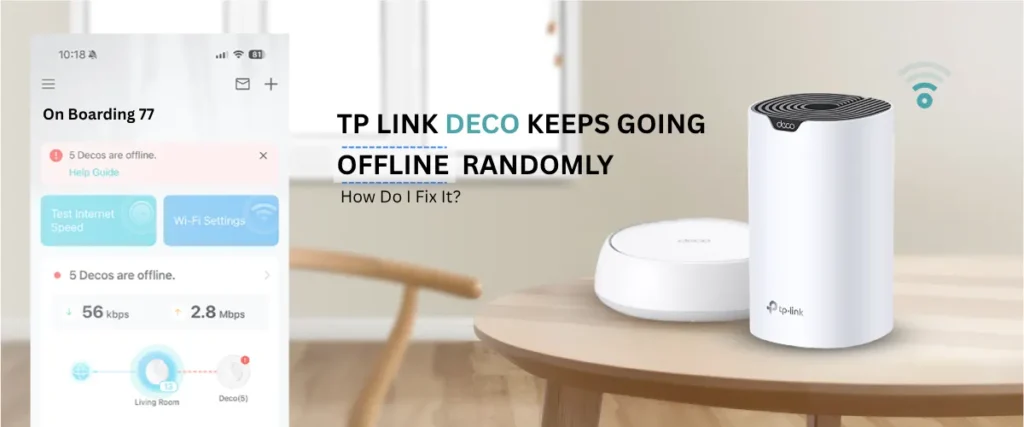
When the red light is active, your Deco offline status in the app will typically confirm that the unit has lost its connection, either to the internet or to the mesh network itself. This is useful because the app distinguishes between “internet down” and “node disconnected,” helping you narrow down the cause quickly without additional troubleshooting.
The Final Word
Seeing your TP Link Deco flashing red is frustrating, but in most cases it signals a straightforward problem with a clear solution. Whether it’s a loose cable, an ISP outage, a poorly positioned satellite unit, or outdated firmware, the fixes outlined above cover the full range of common causes. Work through them methodically, and your Deco network should be back to solid green in no time.
FAQs:
Does flashing red mean hardware failure?
Not necessarily. While hardware failure can trigger a TP Link Deco blinking red light issue in rare cases, the vast majority of red light issues are caused by software or connectivity problems, a lost internet connection, a disconnected satellite unit, or outdated firmware. Start with basic troubleshooting before assuming hardware damage.
Can outdated firmware cause the red light?
Yes. Outdated firmware can cause communication errors between Deco nodes and instability in internet connections, both of which can trigger the red light. Keeping your firmware updated through the Deco app is one of the best preventive measures you can take.
Why is only one Deco unit flashing red?
If only one unit is flashing red, it’s almost always a satellite node that has lost its connection to the main Deco. This is typically caused by distance, physical interference, or a temporary signal dropout. Restarting the satellite unit or moving it closer to the main node usually resolves it.
Does flashing red mean Deco is offline?
Generally, yes. A red flashing light indicates that the unit either cannot reach the internet or has lost communication with the primary node in the mesh network. Checking the app will confirm the exact offline status and the reason behind it.
Can ISP issues cause Deco to flash red?
Absolutely. If your ISP is experiencing an outage or there’s a problem with your broadband line, your Deco will detect the absence of an internet signal and begin flashing red. In this case, no amount of router-side troubleshooting will help until your ISP restores the connection.
How do I reconnect Deco after flashing red?
Start by restarting your modem and Deco units in sequence. Then open the Deco app to check for any reported errors. If a satellite node is offline, restarting it or repositioning it closer to the main node usually restores the connection. For persistent issues, check your firmware version and consider a factory reset as a last resort.