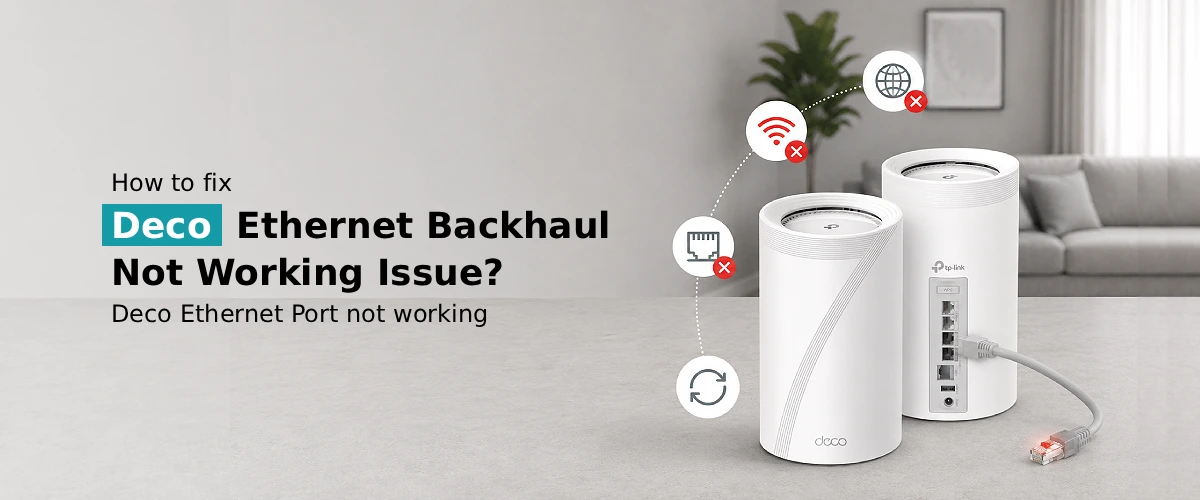
If you are facing Deco Ethernet backhaul not working issue, know that it is almost always caused by a loose or faulty Ethernet cable, incorrect port usage, outdated firmware, or a misconfigured mesh setup. In most cases, you can fix it by checking your cable and port connections, updating your Deco firmware, and restarting the units in the correct order. This guide walks you through every step, along with fixes for slow speeds and low backhaul performance.
TP-Link Deco mesh systems are designed to automatically switch to Ethernet backhaul whenever a wired connection is available, since it’s faster and more stable than Wi-Fi backhaul. But many users report that their Deco Ethernet backhaul not working, even though everything is physically connected. This usually shows up as satellites still running on wireless backhaul, dropped connections, or unusually slow speeds across the mesh network. Below is a complete, easy-to-follow troubleshooting guide to get your Deco units back on a stable wired backhaul connection.
What is Ethernet Backhaul on TP-Link Deco?
Ethernet backhaul means your Deco main unit and satellite units communicate through a physical Ethernet cable instead of Wi-Fi. This method delivers faster speeds, lower latency, and a more reliable mesh connection, which is why most users prefer it over wireless backhaul whenever cabling is available.
Common Reasons Deco Ethernet Backhaul is not working
Before jumping into fixes, it helps to understand why this happens in the first place:
- A damaged or low-quality Ethernet cable
- Cable plugged into the wrong port on the Deco unit
- Outdated Deco firmware not recognizing the wired connection
- Incorrect network topology (for example, satellites connected through a switch instead of directly)
- Temporary glitches that a simple reboot can resolve
- ISP router or modem configuration conflicts after a router change
How to fix Deco Ethernet Backhaul not working?
Follow these steps in order to resolve the issue within the first three steps.
1. Check your Ethernet cable and ports
Unplug and firmly reconnect the Ethernet cable at both ends. Try a different cable if possible, since a faulty cable is one of the most common reasons for backhaul failure.
2. Confirm you’re using the correct ports
On most Deco models, any LAN/WAN port can be used for backhaul, but it’s best to avoid ports that are damaged or rarely used, as they can develop connectivity issues over time.
3. Restart the Deco units in the right order
Power off all Deco units, start with the main unit, wait until it’s fully online, then power on the satellites one at a time.
4. TP Link Deco firmware update
An outdated firmware version is a frequent cause of backhaul detection issues. Open the Deco app, go to More > Firmware Upgrade, and install any available update. This single step resolves a large share of backhaul problems.
5. Reset your Deco if the problem persists
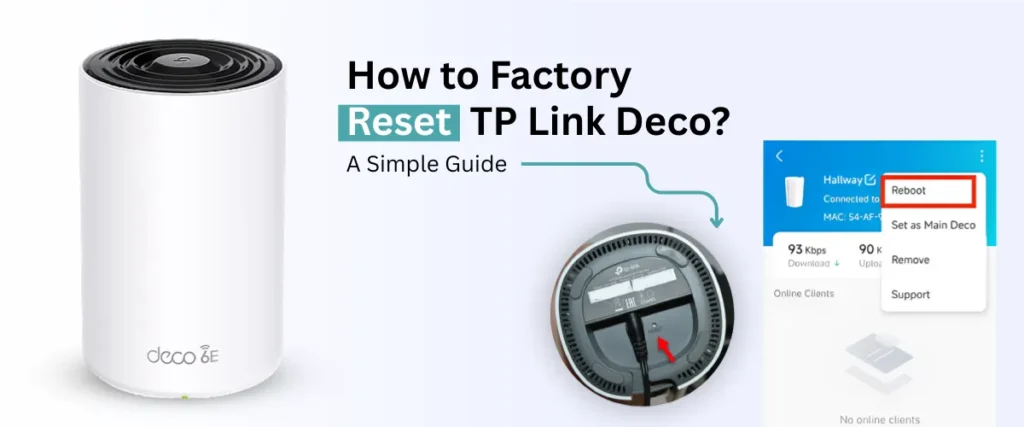
If nothing else works, a factory reset Deco and re-setup often clears corrupted configuration data that prevents Ethernet backhaul from being detected correctly.
6. Re-run the Deco setup process
After resetting, re-add each satellite through the app and connect the Ethernet cable during setup so Deco correctly identifies it as a wired backhaul connection.
TP Link Deco Ethernet Port not working: Troubleshooting Steps
If a TP-Link Deco Ethernet port is not working, try the following before assuming it’s a hardware failure:
- Test the port with a different device to confirm it’s actually faulty
- Try a different Ethernet cable and a different LAN port on the same unit
- Check for physical damage, bent pins, or debris inside the port
- Power cycle the unit, since ports can sometimes freeze after a firmware update
If the same port consistently fails across multiple cables and devices, it may indicate a hardware issue, and you may want to look into a warranty replacement.
Why is Deco Ethernet backhaul slow or speed low?
If your Deco Ethernet backhaul is slow, or you’re noticing that Deco Ethernet backhaul speed is low even though it’s connected, here’s what typically causes it:
- CAT5 cables instead of CAT5e/CAT6, which limits maximum throughput
- Long cable runs or poor-quality cabling that degrades signal quality
- Old firmware that hasn’t optimized backhaul performance
- Interference from switches or splitters placed between Deco units
- Overloaded network with too many connected devices competing for bandwidth
Switching to a CAT6 cable, updating firmware, and connecting Deco units directly (without extra switches in between) usually resolves most speed complaints, including general TP Link Deco slow speed issues across the mesh network.
Frequently Asked Questions
How do I enable Ethernet backhaul on TP-Link Deco?
Why does my Deco still show Wi-Fi backhaul after connecting Ethernet?
What Ethernet cable should I use for Deco backhaul?
How do I fix Deco Ethernet backhaul after changing my router?
Should I restart Deco when Ethernet backhaul is not detected?
Why is my Deco satellite connected by Ethernet but showing a wireless connection?
How can I check whether Deco is using Ethernet backhaul?
Final Thoughts
Most cases of Deco Ethernet backhaul not working come down to a simple cable, port, or firmware issue rather than a hardware failure. Working through cable checks, correct port usage, firmware updates, and a reset if needed will resolve the vast majority of backhaul and speed problems, giving you a faster and more stable mesh network.