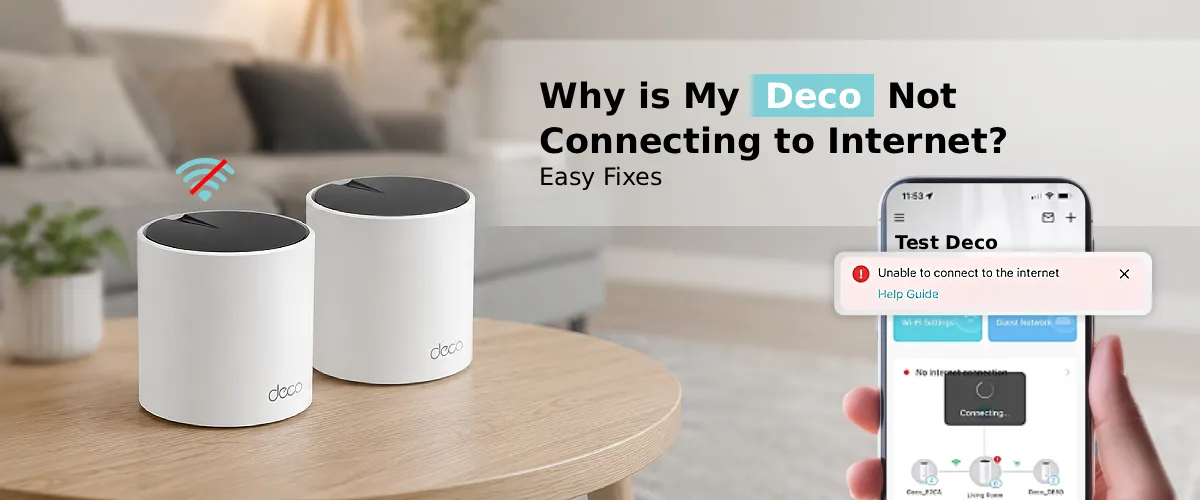
If your Deco is not connecting to internet, the issue is usually one of five things: a modem/ISP outage, a loose cable, outdated firmware, an overloaded mesh network, or a login/sync glitch in the Deco app. Most cases can be fixed in under 10 minutes by power-cycling your modem and Deco units, checking cable connections, and running a firmware update. If your Deco login isn’t working or your unit shows offline in the app, a factory reset combined with re-adding the device usually resolves it. Below, we break down every fix step-by-step.
TP-Link’s Deco mesh systems are known for being reliable, easy to set up, and great at eliminating Wi-Fi dead zones. But like any networking device, they aren’t immune to hiccups. If you’re dealing with a TP Link Deco won’t connect to internet situation, you’re not alone, it’s one of the most common issues reported by Deco users, especially after power outages, ISP changes, or firmware updates.
The good news? Most connectivity problems have simple, non-technical solutions. In this guide, we’ll walk through exactly why your TP Link Deco not connecting to internet issue is happening and how to fix it, no networking degree required.
Common Reasons Your Deco isn’t Connecting to the Internet
Modem or ISP Outage
Before troubleshooting your Deco itself, rule out your internet service provider. If your modem’s internet light is red, blinking, or off, the problem likely originates upstream, not with your Deco. Check your ISP’s outage map or contact their support line to confirm service is active in your area.
Loose or Faulty Cable Connections
A surprising number of “Deco not connecting to internet” complaints trace back to a loose Ethernet cable between the modem and the main Deco unit. Unplug and firmly reseat the cable at both ends. If possible, swap in a new Ethernet cable to rule out a damaged one.
Outdated Firmware
Running outdated firmware is one of the most overlooked causes of connectivity trouble. A firmware update patches bugs, improves stability, and often resolves random disconnects. Deco units that haven’t updated in months are far more prone to dropping their internet connection entirely.
Deco Unit Showing Offline
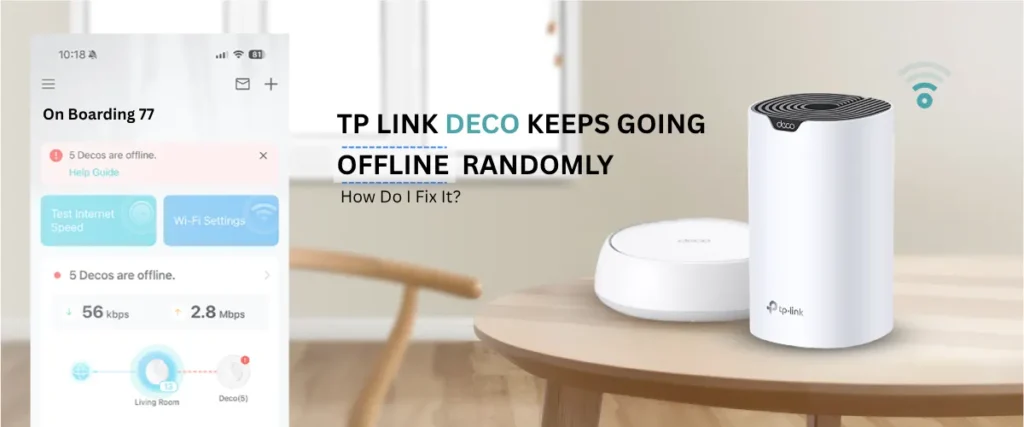
If a satellite unit or even your main Deco shows offline in the app, it usually means that unit has lost its connection to the mesh network, not necessarily the internet itself. This can happen due to distance, interference, or a temporary sync failure.
Login or App Sync Issues
Sometimes the hardware is fine, but your Deco login session has expired or isn’t syncing properly with TP-Link’s servers. This can make your network appear offline in the app even when devices are still connected to Wi-Fi.
Easy Fixes for Deco not connecting to internet Problems
Power Cycle Everything
This solves the majority of cases. Turn off your modem, main Deco unit, and any satellite units. Wait 30 seconds. Power the modem on first, wait 2 minutes, then power on the Deco units one at a time, starting with the main unit.
Check and Reseat All Cables
Ensure the Ethernet cable from your modem goes into the WAN/Internet port on your main Deco unit, not a LAN port. This is a common setup mistake that causes a complete internet failure.
Update Your Deco Firmware
- Open the Deco app
- Go to More > Firmware Upgrade
- Tap Check for Updates
- If an update is available, install it and wait for the unit to restart
A Deco firmware update often resolves bugs causing random disconnects, slow speeds, or units dropping from the mesh.
Reboot Individual Units from the App
If only one satellite is showing offline, try rebooting just that unit through the app under More > Reboot instead of restarting your whole network.
Re-Login to the Deco App
Log out of the Deco app completely, then log back in. This refreshes your Deco network login session and often resolves cases where your network shows offline despite devices having internet access.
Reposition Satellite Units
If a satellite Deco keeps disconnecting, it may be too far from the main unit or blocked by walls/appliances. Move it closer, ideally within line of sight, and check the signal strength shown in the app.
Factory Reset as a Last Resort
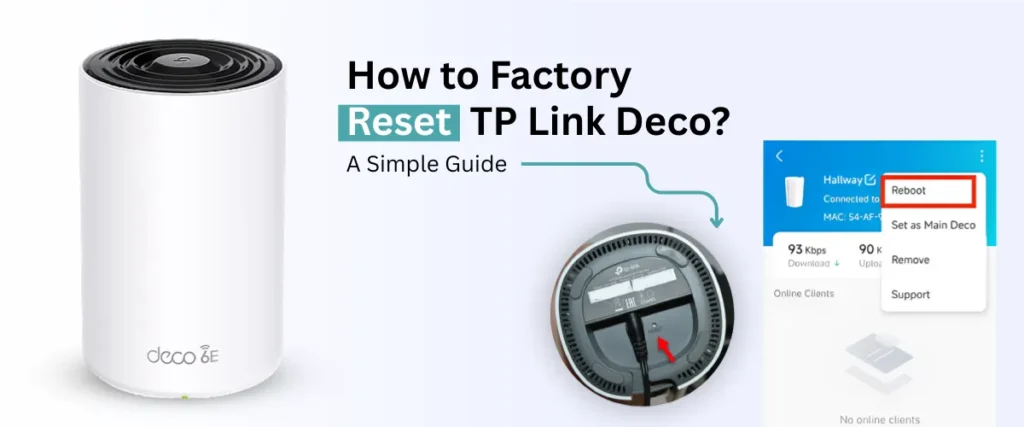
If nothing else works, reset the problematic Deco unit using the reset pinhole (hold for 10 seconds until the LED flashes), then re-add it to your network through the app.
Restart in the Correct Order After Modem Changes
If you recently swapped modems, your Deco may still be holding onto old network settings. Power off the modem and Deco, connect the new modem, power it on first, wait 2 minutes, then power on the Deco.
The Final Word
A Deco not connecting to internet issue is almost always fixable without calling support. Start with the basics, power cycling and cable checks, then move on to firmware updates and app-based reboots. If your TP Link Deco won’t connect to internet even after these steps, a factory reset combined with re-setup will resolve nearly every remaining case.
FAQs:
Why is my TP-Link Deco connected but showing no internet?
This usually means your Deco has a working local network but no signal from your modem or ISP. Check the modem’s internet light, confirm cables are secure, and restart both devices in the correct order (modem first, then Deco).
Can I reset my TP-Link Deco to fix internet issues?
Yes. A factory reset clears misconfigured settings and often fixes persistent connectivity problems. Use the reset pinhole for 10 seconds, then set up the unit again through the Deco app.
Does updating Deco firmware help fix connectivity problems?
Yes, significantly. Firmware updates patch known bugs, improve Wi-Fi stability, and often resolve issues like random disconnects or units dropping from the mesh network entirely.
Why is my Deco app showing my network as offline?
This typically happens due to an app sync issue, an expired login session, or a genuine loss of internet from your ISP. Try logging out and back into the app, or restart your main Deco unit.
Why won't my Deco connect after changing my modem?
New modems sometimes require a fresh connection handshake. Power off both devices, connect the new modem, power it on first, wait a couple of minutes, then power on your Deco units to re-establish the connection.