To update TP Link Deco firmware, open the TP-Link Deco app, log in, and go to More > Update Deco. Check for available firmware updates, then tap Update. Keep your Deco device powered on and connected to the internet during the process. The system will automatically install and restart once the update is complete.
TP-Link Deco router is among the most popular networking devices you can buy from the market. If you have one of these, ensuring you keep it updated at all times will help maintain a healthy home network. TP Link Deco firmware update helps fix security issues, bugs, and helps the device function even better than it may currently be. Whether you won a Deco device, some other tp link router model, learning how to update the firmware will help you in the long run. This blog will walk you through the easy steps on how to update the TP-Link Deco firmware, what to do when things go wrong, and how to keep the mesh system running at its best.
Why Make the Latest TP Link Deco Firmware Update?
Firmware is the software that comes preinstalled on your hardware routers. It’s different from a traditional app that you install on your phone’s operating system because it’s in charge of everything at a fundamental level. Skipping a firmware update for a Deco device:
- Security holes remain unfixed. Hackers continue to take advantage of known router security flaws. Manufacturers address these issues via firmware updates.
- Performance is still limited. Some updates include Wi-Fi enhancements, beamforming upgrades, and throughput improvements that actually boost real-world speeds.
- Compatibility problems endure. New smart home devices, gaming consoles, and laptops may require router firmware upgrades for proper connectivity.
- Flaws still exist. Lost connections, poor speeds on certain bands, and mesh node connectivity issues are often resolved behind the scenes.
Fortunately, steps to update Deco firmware is easy and take under five minutes.
Things You’ll Need
Before we get started with the TP Link Deco firmware update procedure, ensure that you have:
- The Deco app installed on your iOS or Android smartphone. It’s the main interface for controlling all your Deco devices.
- Your Deco network is running with at least one main Deco device connected to your modem.
- A reliable internet connection, the firmware update file is downloaded directly from TP-Link’s servers.
- About 5-10 minutes of downtime, your network will briefly need to restart during the update.
Pro Tip: Try to update your firmware during off-peak times so that the brief network restart doesn’t affect your streaming, gaming, or video calls!
How to Update TP Link Deco Firmware?
Step 1: Log into the Deco App
Open the Deco app on your smartphone. You will have to undergo a tplink deco login procedure if you have not already set up your account. You will have to use your TP-Link ID, a free account associated with your email, to do this.
After you have completed your login, you will be taken directly to your home dashboard, where you can see all your Deco nodes and their status.
Step 2: Access the Firmware Settings
From Home Screen:
- Tap on ≡ (More) icon on the bottom right.
- Then select the Advanced button.
- Now, tap on Firmware Update (or Update, depending on your app version).
The app will automatically check TP-Link servers for the latest firmware version available for your Deco device.
Step 3: Check the Available Update
If new firmware is available, you’ll be shown:
- The current firmware version that’s installed on your Deco device on the Deco Mesh setup wizard.
- The new firmware version number
A brief summary of the new firmware’s changes, sometimes called “improvements and bug fixes.”
Take a moment to review the summary of changes. It often includes information on what bugs are fixed and what performance improvements you can expect after installing the new firmware.
Step 4: Making the Update Deco firmware
Tap Update or Update Now. The app will:
- Download the firmware file from TP-Link’s servers.
- Push the firmware to all Deco nodes in your mesh network at once (depending on your Deco device and app version).
- Automatically reboot each node after the update has been applied.
- Do not unplug any of your Deco devices during this procedure. Your network will be offline for 2-4 minutes while the nodes reboot. This is normal.
Step 5: Verify the Update Progress
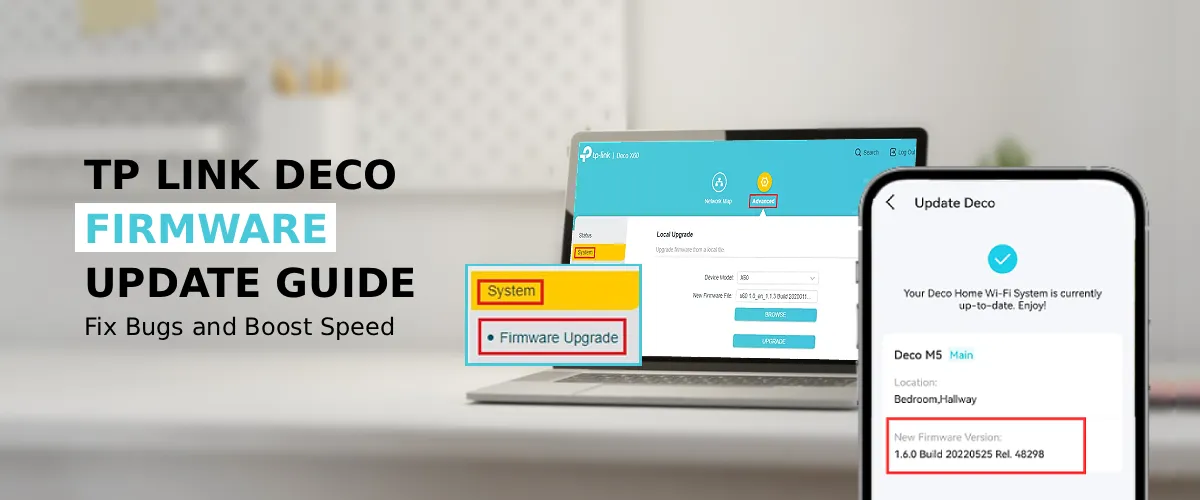
Once all nodes are back online, we return to More > Advanced > Firmware Update. The firmware version will reflect the newly installed firmware. If the firmware version matches the one we initiated, we have successfully completed the TP-Link Deco firmware update.
How to Enable the Auto-Update Feature?
If you’d rather not think about firmware at all, TP-Link has you covered with auto-update. Here’s how to enable automatic TP Link Deco firmware update:
- Open the Deco app.
- Go to More > Advanced > Firmware Update.
- Toggle on Auto Update.
When auto-update is enabled, your Deco will update the firmware during low-traffic periods, usually late at night. You’ll get a notification when the update is applied. This is the easiest way to make sure your Deco has the latest firmware.
How to Update Deco Firmware Manually (Without the App)
In rare cases such as when the app is not working, you have lost access to your TP-Link account or you are updating a unit that is not yet connected to the internet, you can manually update Deco firmware of your TP Link Deco via a web browser.
Manual Update via Web Interface
- Connect your computer to the Deco network through Wi-Fi or Ethernet.
- Launch a web browser and navigate to http://deco.net or the local IP of the Deco device (usually 192.168.68.1).
- Log in with the local admin password.
- Proceed to Advanced > System > Firmware Upgrade.
- Download the appropriate firmware for the specific Deco device you’re using from TP-Link’s official support website.
- Upload the file to begin the upgrade process.
Critical Warning:
When updating firmware files, always use firmware files downloaded from the official TP-Link website. Do not flash firmware files downloaded from other websites. It may cause serious damage to your device.
Deco Firmware Update Failed: How to Fix?
However, sometimes things do not go as planned when making the latest TP Link Deco firmware update. If you see a “Deco firmware update failed” error message, there is no need to get worried. It is one of the most common issues faced by users of TP-Link products, and the good news is that the issue is usually easy to resolve. Here are the best steps to troubleshoot the issue:
- The Deco app also needs an active internet connection to download the firmware file. You can check your internet connection by loading a webpage on the same phone with the app running. If your connection is bad or dropping out, wait for a better connection and try again.
- Power cycle all of the Deco devices. Disconnect the devices from the power source. Wait for 30 seconds. Connect them again, starting with the main Deco. Wait for two minutes for the network to stabilize and then retry the update.
- If you have multiple Deco units and the update is not succeeding, you might also try switching to manual firmware upload and updating the main unit first and then the individual satellite nodes.
- If there are any heavy downloads, streaming, or large uploads happening on the network, it is recommended that these be paused before proceeding with the update, as this can interfere with the firmware download.
- Occasionally, TP-Link’s firmware distribution servers experience temporary outages. If the update consistently fails across multiple attempts over a few hours, visit TP-Link’s community forums or social channels to check if others are reporting the same issue.
- If the app-based Deco firmware update keeps failing, fall back to the manual browser-based method described above. Manually uploading the firmware file bypasses TP-Link’s cloud infrastructure entirely, which eliminates server-side failures as a variable.
TP-Link Deco Network Not Showing After Firmware Update
One of the more worrying issues that users face after the updates is that the TP Link Deco network disappears from the list of devices after the firmware updates. Before jumping to conclusions that something is wrong, here are a few troubleshooting steps to consider:
- After the firmware upgrade process, all of the Deco nodes will automatically reboot and go through a process called re-initialization. This process will take 3 to 7 minutes depending upon the number of nodes present in your network. In most cases, your network will automatically come back online. However, it is suggested that you wait at least 10 minutes before taking any further steps.
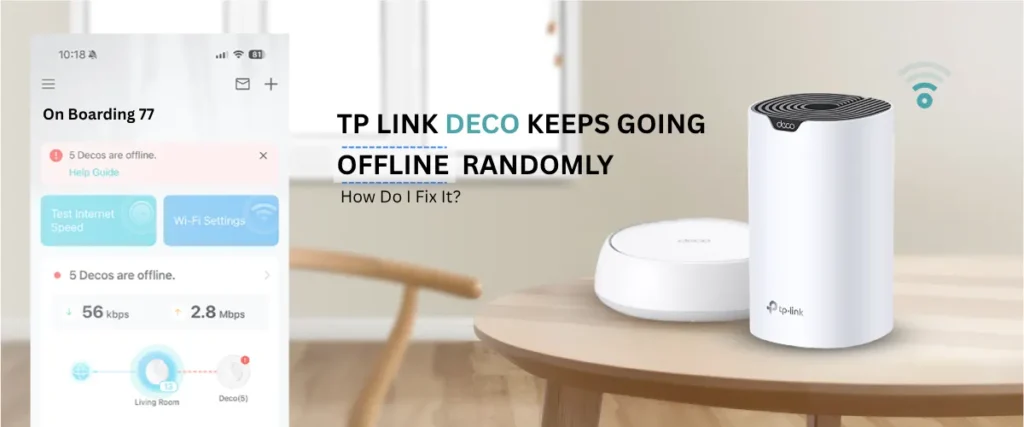
- Ensure that each of the Deco nodes has power and that the LED light is illuminated. In cases where a node was without power during the reboot process, it will be necessary to turn it back on.
- Unplug only the main Deco (the one connected to your modem), wait 20 seconds, and plug it back in. The satellite nodes will sometimes connect automatically when the main node comes back online.
- In some instances, the firmware upgrade will also reset your network name (SSID) to its default settings. You will see the list of nearby Wi-Fi networks, including one named “TP-Link_Deco_XXXX,” where “XXXX” will be based on the MAC address of your Deco. Simply connect to this, and re-enter your customized network name using the Deco app.
- If the nodes are still not visible in the app or connecting to each other, you might need to reconfigure your deco mesh network. To do this, open the Deco app and select the option to add Deco units by tapping the “+” button, and then go through the setup process to re-add the nodes that are not connected to the mesh network.
Reset your Deco to Factory Settings
If your Deco is behaving abnormally after TP Link Deco firmware update, crashing repeatedly, not connecting nodes, or showing constant errors, a factory reset is the best option, and it almost always fixes problems related to firmware.
- To reset Deco devices:
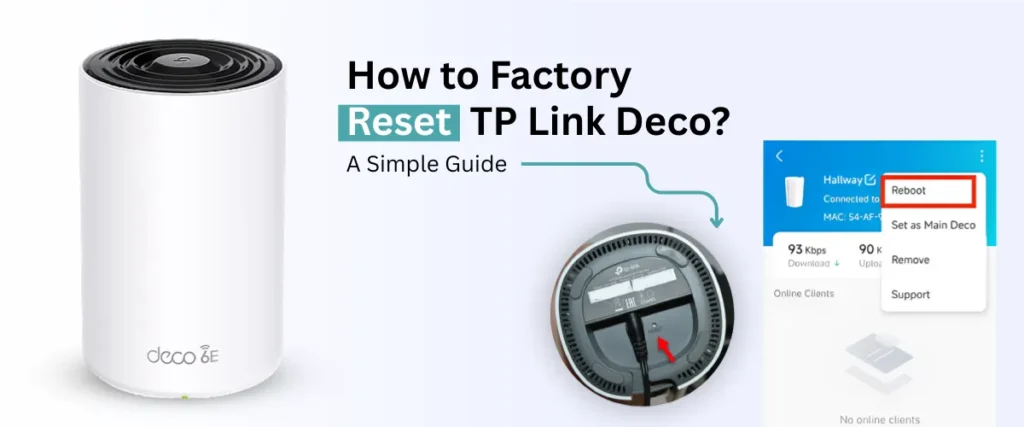
- Look for the small button on the back or bottom of the device. This is the reset button.
- With the device turned on, press and hold the button with a paper clip or pin for 5 seconds or until the light flashes amber/red.
- Release the button. The device should restart and return to its original settings.
- Repeat the process for the devices you want to reset.
- After resetting the devices, launch the Deco app and go through the initial setup for the Deco Mesh Network as if you’re setting up the network for the first time.
Note:
When performing a factory reset, all your network settings are cleared, including your Wi-Fi network name, password, port forwarding rules, parental control settings, and QoS settings. It is recommended that you take note of your network settings.
The Final Word
Running an old version of firmware on your mesh network with Deco is like leaving a window open in your home. It’s a small thing that adds up to a big risk over time. Updating the firmware of your TP Link Deco network is a straightforward process that only takes a few minutes, doesn’t cost a dime, and offers you important security, stability, and speed advantages.
If problems do arise, whether it is a TP Link Deco firmware update failed issue or a TP Link Deco network not showing after firmware update issue, the troubleshooting process above covers the vast majority of potential problems. And if all else fails, a factory reset of the devices and a new mesh network setup will get you up and running with a fully functional network in under 20 minutes. Keep your firmware up to date and enjoy the benefits of a Deco mesh network.
Frequently Asked Questions
How often does TP-Link release firmware updates for Deco?
TP-Link has an irregular release schedule for updates, but on average, it is every 2-4 months for supported devices. In case of security vulnerabilities, updates are released sooner. To stay up to date, it is recommended to enable auto updates.
Will a firmware update delete my settings?
No. An update of the firmware will retain all your network settings, device names, parental controls, and settings. Only a factory reset via the pinhole button clears your settings.
Can I roll back to a previous firmware version?
No. An update of the firmware will retain all your network settings, device names, parental controls, and settings. Only a factory reset via the pinhole button clears your settings.
My Deco shows "Up to Date" but I know there's a newer version. What's happening?
TP-Link also rolls out firmware updates regionally and for different hardware revisions. You won’t necessarily see a new update immediately even if others are seeing it. Try checking back in a week or use the manual download from TP-Link’s website.
Is it safe to update firmware while devices are connected to the network?
Yes, devices simply lose connection for the 2-4 minute reboot period and then reconnect. You don’t have to disconnect devices before running the update.