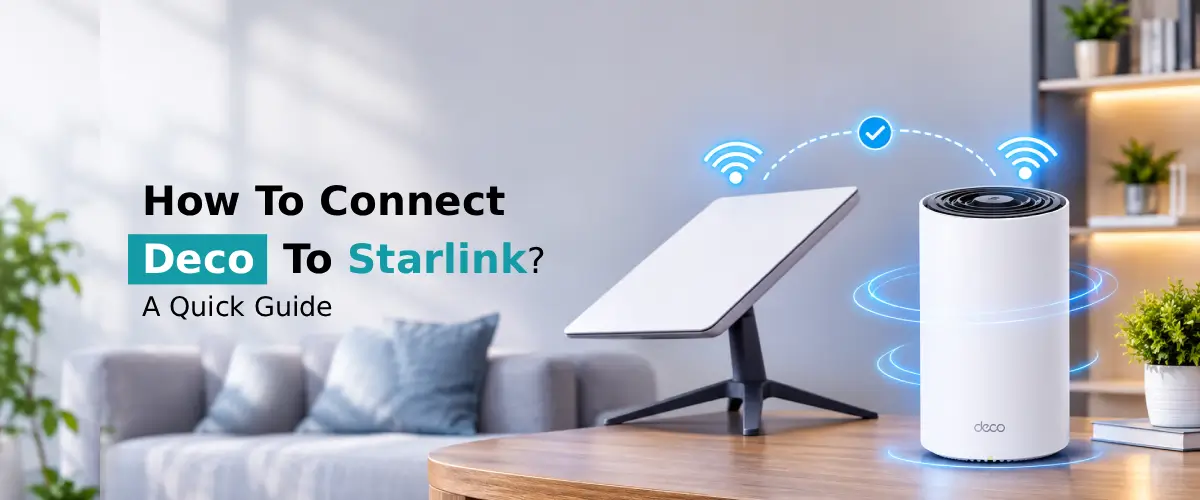
To connect Deco to Starlink router/power supply using an Ethernet cable. Follow the steps in the TP-Link Deco application to set up your Deco. Create your Wi-Fi. If you would like all of your network functions to be managed by your Deco, then also enable Bypass Mode on a compatible Starlink router. Then simply connect your extra Deco devices to help provide Wi-Fi coverage across your home.
Starlink can provide fast satellite internet; however, it may have limited coverage when using Wi-Fi throughout a large area such as your home or office. To improve your Wi-Fi connectivity, you can use a TP-Link Deco mesh system. Combining your Starlink internet with Deco mesh will allow you to increase connectivity, decrease dead spots, and provide a more reliable connection to multiple devices. Connect Deco to Starlink is an easy system to do, even if you aren’t particularly knowledgeable about networks. All you’ll need is the correct Ethernet connections, compatible devices, and the Deco app. We’ve put together this guide so you can connect Starlink to Deco mesh, set up the correct settings, and overcome any common issues.
What Do You Need to Connect Starlink to Deco Mesh?
In order to connect your Starlink to your Deco Mesh, you will need the following:
- An active Starlink connection (Starlink dish and router that is connected to the internet)
- A TP-Link Deco unit (Deco M5, X20 or X50)
- Ethernet cable (to connect your Starlink router to the main Deco unit)
- Ethernet adapter (If your Starlink router doesn’t have an Ethernet port)
- Smartphone or other device (for connecting using the TP-Link Deco app)
- Power Adapter (to power your Deco units)
- Firmware (to ensure your network runs smoothly)
How to Connect Deco to Starlink?
Connecting a Deco to Starlink is easy; follow the steps below using an Ethernet cable:
- Setup: Open Deco mesh setup and ensure that your Starlink router and Deco main unit are powered on and the Starlink internet is working correctly.
- Connect Ethernet Cable: Connect an Ethernet cable to your Starlink router and Deco. Make sure one end goes into the Ethernet port on your Starlink Router and the other into your Deco’s WAN port. Some models will require you to use an Ethernet adaptor.
- Deco App: Download and open the Deco app on your smartphone. Log in to your TP-Link account.
- Set up Deco: Select your Deco model and follow the setup process. If required, select Dynamic IP as the internet connection.
- Wi-Fi Network: Enter your preferred Wi-Fi name and password.
- Finish: Your Deco should light up to show it has successfully connected. Test your internet.
Once your TP-Link Deco is connected, you can now connect more Deco units to extend your Starlink Wi-Fi.
How to Connect Deco App to Starlink?
To connect your Deco mesh to Starlink, simply follow the steps below using the Deco app:
- Download the Deco app: Firstly, download and install the Deco app from either the Google Play Store or Apple App Store.
- Log in: Open the app and log in using your TP-Link account.
- Connection: Next, connect your Starlink router to the WAN port on your main Deco unit using an Ethernet cable. If your Starlink requires an Ethernet adapter, then include this too.
- Add your Deco unit. Next, click on the Add Deco (+) option and select your Deco model.
- Connection: Follow the on-screen prompts to add your connection. When asked what type of internet connection you have, select Dynamic IP.
- Wi-Fi: Enter your desired network name and password.
- Complete: Finally, save your settings. The Deco LED will light up to show it has been connected successfully.
Finally, connect your smartphone to your new Deco Wi-Fi network. You can also use the app to add more Deco units to increase your Starlink coverage.
Common Issues When Connecting Starlink and Deco
Occasionally, you might experience issues connecting your Decos to the internet via Starlink. Below are some common issues and how to fix them.
Issues | Solutions |
No internet on Deco | Ensure Ethernet cables are connected, and Starlink is connected. |
Wrong IP Settings | Set a dynamic IP in the Deco app. |
Double NAT | Try turning on Bypass Mode if you have a compatible Starlink router. |
Red light on Deco | Restart the router and check the internet connection. |
Poor Mesh Coverage | Move extra Decos nearer to the main Deco. |
Connection drops | Update Firmware and check Ethernet cables. |
If you still cannot connect, then try restarting the Starlink router and Deco router or check http tplinkdeco net. Let them fully boot up.
FAQs:
Can I connect TP-Link Deco directly to Starlink?
Yes, a TP-Link Deco can be directly connected to Starlink. All you will need is an Ethernet cable, and if your Starlink router is in a certain generation, you may also need an Ethernet adapter. Configure your Deco via the mobile app.
Do I need to enable Bypass Mode on Starlink?
You do not need to enable Bypass Mode. However, your Deco can be used with Starlink even with the router still in regular mode. If Deco is being used to manage the routing and Wi-Fi settings, then it can be beneficial to use Bypass Mode. It can also help avoid double NAT.
Why is my Deco not connecting to Starlink?
This could be caused by a few factors. If your Ethernet cable is not fully plugged in, the internet settings are not set correctly, there is no internet connection from Starlink or you have the wrong Ethernet adapter. Ensure your Ethernet cable is plugged in fully, Dynamic IP is selected, and both devices are restarted. Ensure your Starlink router has an active internet connection.
Can I use multiple Deco units with Starlink?
Yes! You can connect multiple Decos to Starlink to increase your Wi-Fi coverage. Configure your main Deco first and then use the TP-Link Deco app to add extra Decos. Place them in the best places possible to maintain a good connection.
Will Starlink speed decrease when using TP-Link Deco?
No, using a TP-Link Deco will not affect your Starlink internet speed. However, this will depend on the Deco model, how much interference there is, the Ethernet connection, distance between mesh points, and Starlink conditions. Using an Ethernet backhaul between the Deco units will help increase the speed.
Can I use Starlink Wi-Fi and Deco Wi-Fi together?
Yes, you can. However, they may not work together properly. You may experience double NAT if devices are connecting to separate routers. If you wish to keep your network simple, use Bypass Mode on your Starlink.
Final Thoughts
A strategy related to connect Deco to Starlink is a great way to increase your wireless coverage. By using an Ethernet cable, correctly configuring the app, and placing your Deco units in the best spots, you can increase your Starlink internet across your home. Ensuring your TP Link Deco firmware update system is managed properly and your router is in the correct mode will help to ensure a stable and efficient network.

About the Author
Alex morgan is an IT Support Specialist and Technical Content Author focused on TP-Link networking products, WiFi connectivity, Deco Mesh systems, and router troubleshooting. He creates easy-to-follow technical guides covering TP-Link Deco setup, network configuration, WiFi connectivity issues, troubleshooting, and device management.
His goal is to help readers understand networking technology through clear explanations, practical tips, and step-by-step support guides.